Environment Variables
Environment variables in the Laboratory allow you to manage configuration values that can be used across all your operations. They’re perfect for storing API keys, endpoint URLs, authentication tokens, and other environment-specific settings.
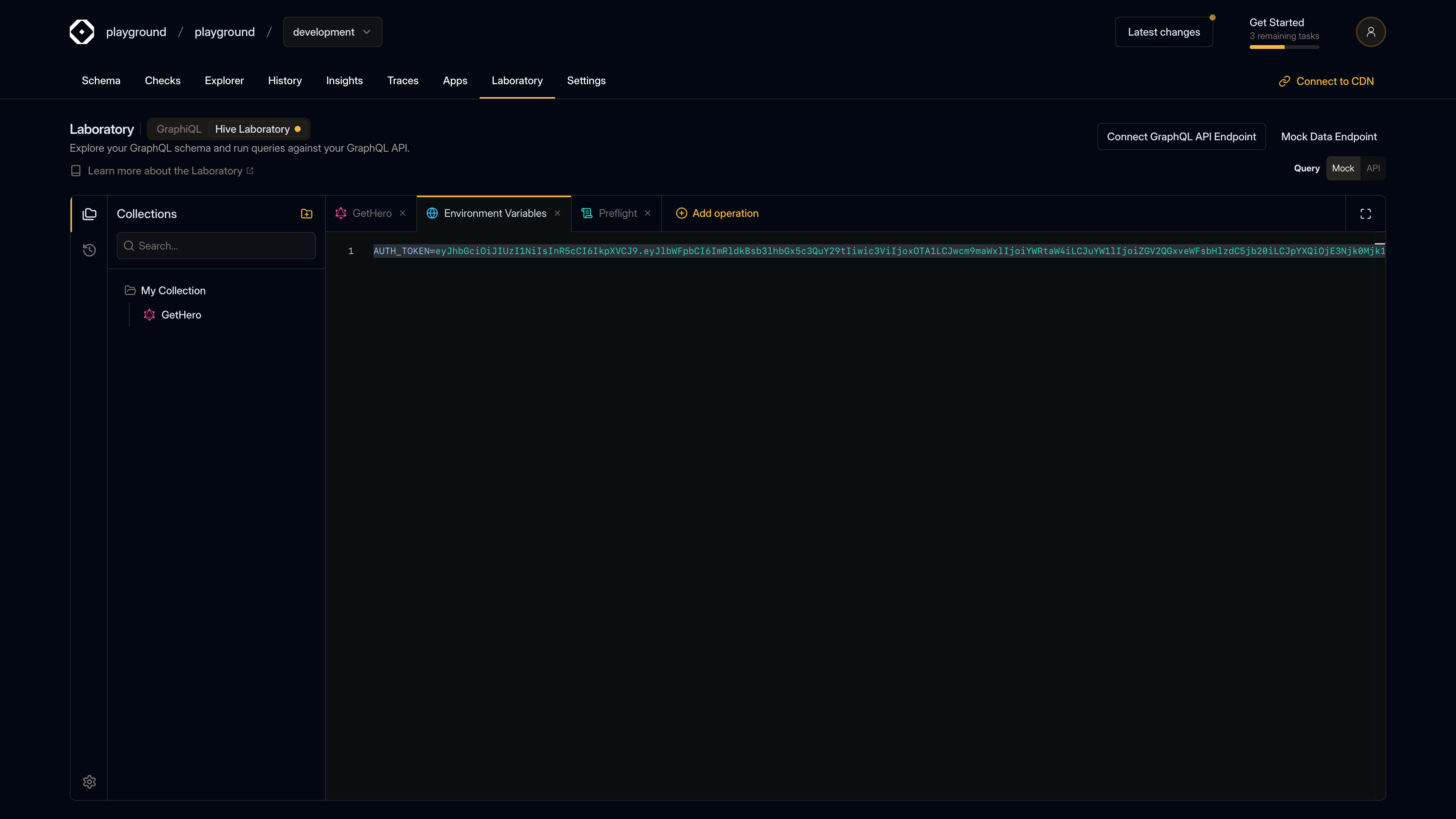
What are Environment Variables?
Environment variables are key-value pairs that:
- Persist across operations - Set once, use everywhere
- Environment-specific - Different values for dev, staging, production
- Secure storage - Keep sensitive data out of your operations
- Easy updates - Change values in one place
Accessing Environment Variables
To manage environment variables:
- Open the Settings menu (gear icon in the left sidebar)
- Select “Environment Variables”
- Or use the Command Palette (
⌘J) and select “Open Environment Variables”
Setting Environment Variables
Environment variables are set in a .env file format:
Format
Each line represents one variable:
- Key - Variable name (alphanumeric and underscores)
- Value - Variable value (can contain spaces, special characters)
- Comments - Lines starting with
#are ignored - Empty lines - Blank lines are ignored
Examples
Using Environment Variables
In Preflight Scripts
Environment variables are accessed in preflight scripts using the lab.environment API:
In Operations
While environment variables are primarily used in preflight scripts, you can reference them when building operations. The exact method depends on how your preflight scripts expose them.
Common Use Cases
API Keys
Store API keys securely:
Authentication Tokens
Manage authentication tokens:
Endpoint Configuration
Configure different endpoints:
Feature Flags
Control feature availability:
Environment-Specific Variables
Development Environment
Staging Environment
Production Environment
Best Practices
Naming Conventions
Use consistent naming:
- UPPERCASE - Use uppercase for all variable names
- Underscores - Use underscores to separate words
- Descriptive - Use clear, descriptive names
- Prefixes - Use prefixes for related variables
Good examples:
Bad examples:
Organization
Organize variables logically:
Security
- Never commit secrets - Don’t commit environment variables with real secrets to version control
- Use placeholders - Use placeholder values in shared configurations
- Rotate regularly - Update API keys and tokens regularly
- Separate environments - Use different values for dev/staging/production
Documentation
Document your variables:
Managing Variables
Adding Variables
- Open Environment Variables tab
- Add a new line with
KEY=valueformat - Variables are saved automatically
Updating Variables
- Find the variable in the editor
- Update the value after the
=sign - Changes are saved automatically
Deleting Variables
- Remove the line containing the variable
- Or set it to an empty value:
KEY= - Changes are saved automatically
Comments
Add comments to document variables:
Integration with Preflight
Environment variables work seamlessly with preflight scripts:
Troubleshooting
Variable Not Found
If a variable isn’t found:
- Check spelling - Variable names are case-sensitive
- Verify it’s set - Make sure the variable exists in the Environment Variables tab
- Check format - Ensure it follows
KEY=valueformat
Variable Not Updating
If changes aren’t taking effect:
- Save the Environment Variables tab
- Re-run your operation
- Check for syntax errors in the .env format
Special Characters
If your value contains special characters:
Empty Values
To set an empty value:
Or simply omit the variable.
Security Notes
- Local storage - Environment variables are stored locally in your browser
- Not encrypted - Values are stored in plain text
- Browser-specific - Variables are per-browser, not synced across devices
- Session-based - Variables persist until you clear browser data
For sensitive production data, consider:
- Using preflight scripts to prompt for values
- Storing secrets in secure vaults
- Using organization-level environment management (if available)